Your Samsung TV refuses to connect to wifi, and the network menu displays an error message or does not detect any access point. Before suspecting a hardware failure, several technical parameters should be checked: router security protocol, broadcast frequency band, firmware version. This article reviews the most common causes and solutions ranked by effectiveness.
WPA3 Protocol and 5 GHz Band: Two Invisible Causes of Wifi Blocking on Samsung TV
The majority of troubleshooting guides start with a router restart. This is helpful, but it does not solve anything when the problem arises from an incompatibility between the TV and the network configuration.
Two router parameters can make the network completely invisible to the TV, without any explicit error message appearing.
| Router Parameter | Behavior on Samsung TV | Solution |
|---|---|---|
| Security set to WPA3 only | The network does not appear in the wifi list | Change the router to WPA2-Personal with AES encryption |
| Broadcasting only in 5 GHz (Wi-Fi 5 or 6) | The network remains undetectable on some models | Enable the 2.4 GHz band or create a dedicated SSID in 2.4 GHz |
| Improperly configured mixed WPA/WPA2 mode | Unstable connection or authentication failure | Set the router to pure WPA2 (no mixed mode) |
Some versions of the Tizen system do not support the WPA3 protocol or mixed WPA/WPA2 modes. Samsung recommends temporarily configuring the network to WPA2-Personal with AES encryption to isolate the problem.
When a wifi connection issue on Samsung TV persists after a restart, checking these two parameters in the router’s administration interface saves considerable time.
Regarding the frequency band, some Samsung models from 2018 only support 2.4 GHz. A network broadcast only in 5 GHz will therefore be invisible to these TVs, with no alerts on the screen. The most reliable solution is to separate the bands in the router settings and connect the TV to the 2.4 GHz SSID.
Tizen Firmware Update: An Often-Underestimated Fix
A Samsung TV with outdated firmware may lose the ability to negotiate properly with the router after a network configuration change (box update, new protocol activated by the ISP). Samsung recommends checking the software version in the dedicated menu.
The path is as follows: Settings, All Settings, Support, Software Update, Update Now. If the TV does not connect to wifi at all, the update can also be done via USB by downloading the firmware from the Samsung website with the exact model number.
However, if the TV connects intermittently (connection drops after a few minutes), the problem is more often related to an IP address conflict or router overload than to the firmware.
Integrated Network Diagnostic: Not Available on All Models
Samsung Smart TVs and monitors sold from 2022 onwards feature a network self-diagnostic tool. This test checks the functionality of the internal wifi module and the ability to reach a remote server.
Samsung specifies that this diagnostic can indicate a failure simply when no access point is detected nearby, which does not mean that the module is faulty. On models prior to 2022, this tool does not exist: manual elimination must be used.
Network Reset on Samsung TV: When and How to Trigger It
If changing the router settings and updating the firmware yield no results, resetting the TV’s network settings is the next step. This clears stored wifi credentials, manual IP configurations, and any corrupted certificates.
- Go to Settings, then General, then Network, then Reset Network Settings. This operation does not delete any apps or accounts installed on the TV.
- After the reset, restart the search for wifi networks and manually enter the password. Avoid WPS connection, which may reproduce the same protocol conflict.
- If the network appears but the connection fails at the authentication stage, manually configure the IP address in the advanced network settings of the TV (static IP, subnet mask, gateway, DNS).
Configuring a manual DNS (like 8.8.8.8) resolves some connection failures related to the DNS server of the ISP. This setting can be found in the advanced IP settings of the TV’s network menu.
Check Router Saturation
A standard home router generally manages about twenty connected devices simultaneously. Beyond that, some devices may be silently rejected. Counting the number of connected devices (smartphones, tablets, speakers, smart objects) and temporarily disconnecting a few allows you to check if the TV can then connect.
Wired Ethernet Connection: The Test That Distinguishes Between Wifi Failure and Network Failure
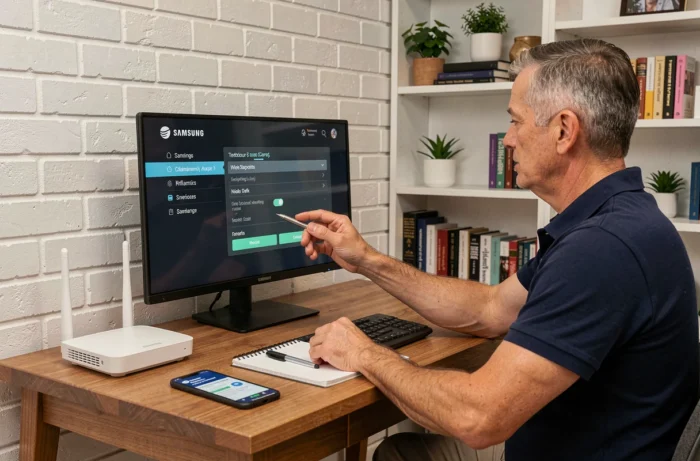
Connecting an Ethernet cable between the router and the Samsung TV is the quickest way to determine if the problem lies with the TV’s wifi module or the overall network configuration.
- If the TV connects immediately via wired connection, the wifi module or its configuration is at fault. A complete factory reset of the TV (not just the network) may then be considered.
- If the TV does not connect via Ethernet either, the problem is on the router or ISP side. Testing with another device (laptop) on the same cable and port of the router confirms this.
- On recent models that do not have a built-in Ethernet port, a compatible Samsung USB-Ethernet adapter (sold separately) serves the same testing function.
An Ethernet test that works proves that the problem is localized to the TV’s wifi module. In this specific case, if the factory reset also fails, the wifi module may be physically defective, which falls under Samsung’s after-sales service.
Furthermore, the Ethernet cable remains a viable permanent solution for TVs installed near the router: the connection is more stable and the bandwidth more consistent, which directly benefits high-resolution streaming.